Bill Details
The bill detail view shows you everything at a glance: who paid, what items are there, and how far along the assignment is.
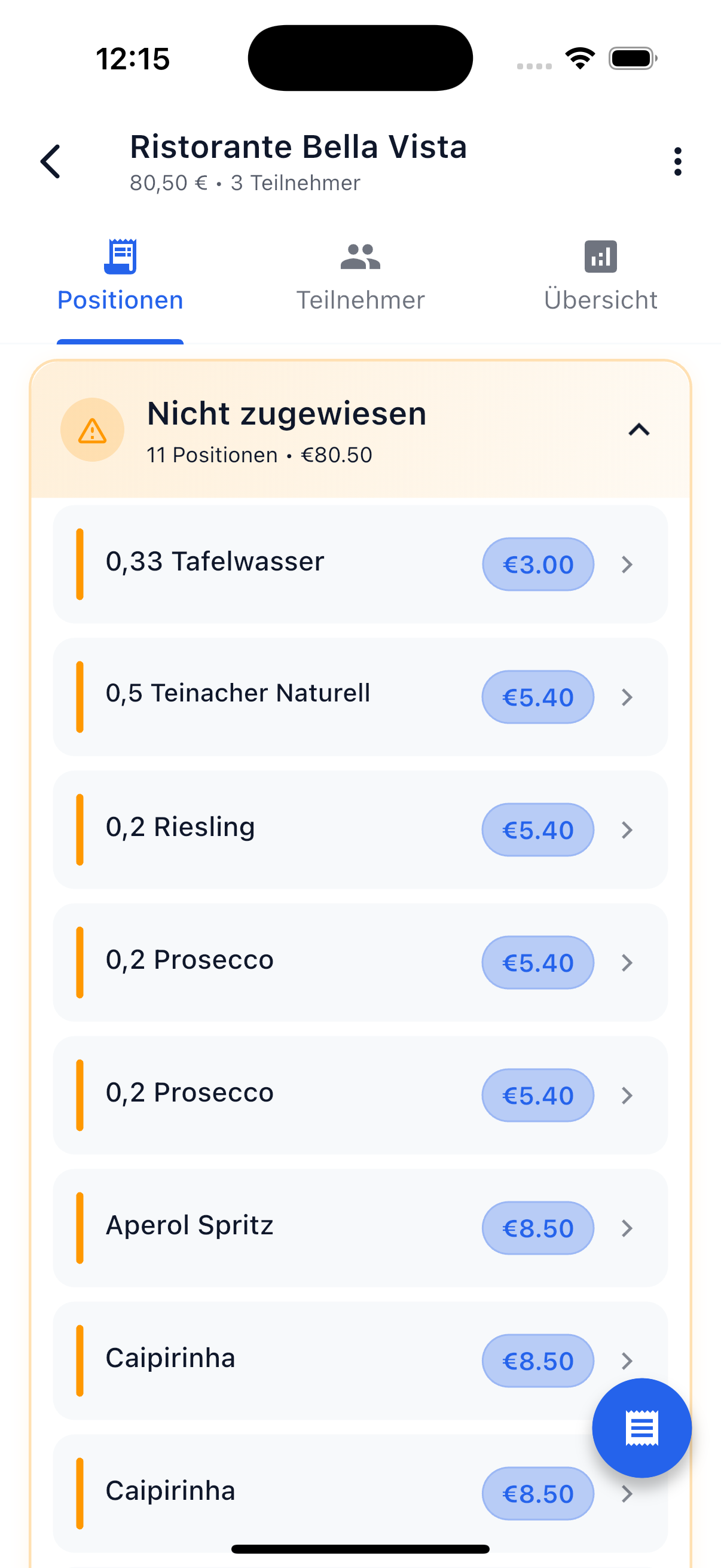
Overview
At the top of the bill details you'll find the key information:
| Info | Description |
|---|---|
| Title | Name of the bill (e.g., "Pizzeria Da Luigi") |
| Total amount | The full amount including currency |
| Payer | Who paid the bill? |
| Date | When was the bill created? |
| Participants | All involved people (as avatars) |
Event Association
If the bill belongs to an event, an event tag is displayed. Tap it to navigate directly to the event and view the overall settlement.
Items List
The items show all individual entries on the bill. Each item has a status indicated by colors and sections.
Assign an Item
To assign an item:
- Tap on an item in the list
- A sheet opens with all participants
- Select a person to assign the item to
- The item changes to "Assigned" status
Swipe Gestures
For faster work, SplitHappens supports swipe gestures:
| Gesture | Section | Action |
|---|---|---|
| Swipe right | Open items | Assign the item to yourself |
| Swipe left | Your assigned items | Release the item (back to Open) |
| Swipe left | Paid items | Mark as unpaid |
Progress Bar
The progress bar shows you at a glance how much of the bill has been assigned:
- Red (< 50%) — Few items assigned
- Orange (50–75%) — Progress, but not complete yet
- Green (> 75%) — Almost all items assigned
Below it shows the exact count, e.g., "2/4 assigned."
Edit Bill
Tap the menu (three dots top right) to edit the bill. This option is only available to the payer.
You can change:
- Title
- Total amount
- Participants (add or remove)
- Items (add, modify, or delete)
- Payer
Restrictions
When items are already assigned or paid, certain changes may be restricted to maintain consistency. Settled bills (after settlement) are read-only.
Delete Bill
- Open the bill details
- Tap the menu (three dots top right)
- Select "Delete Bill"
- Confirm the deletion
Who Can Delete?
The creator or the payer of the bill can delete it.
Cannot Be Undone
A deleted bill cannot be restored. All assigned items and amounts will be lost.
Next Steps
-
Manage Positions
Assign items or split them up.
-
Settle Debts
Settle open amounts with your friends.