Manage Positions
Positions are the individual items on a bill. Here you'll learn how to assign them, split them, and keep track.
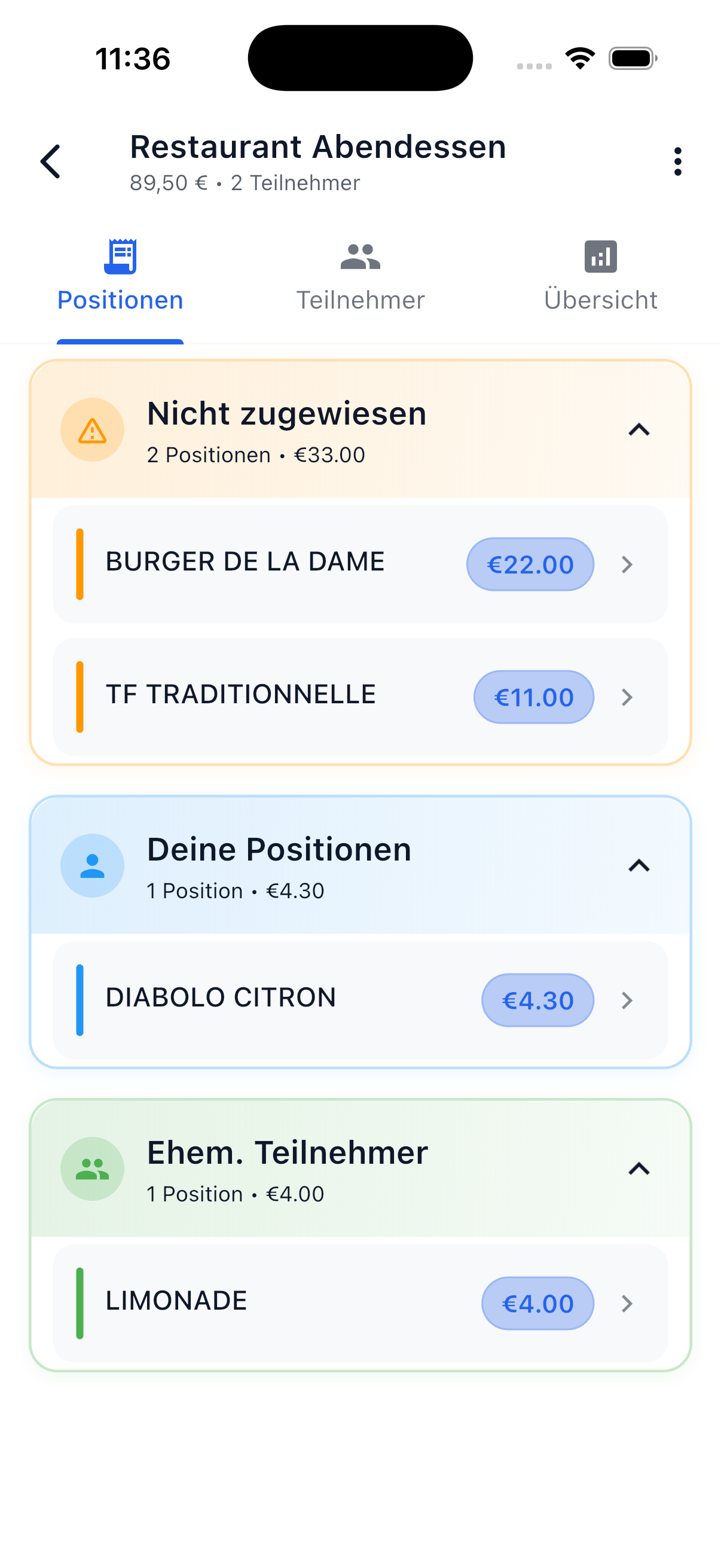
Position Status
Each position has a status that shows you where it stands. In the app, you can identify the status by the section in which the position appears:
Open — "Unassigned"
The position has not been assigned to anyone yet. It appears in the orange section "Unassigned" with a warning icon. It's waiting for someone to claim it or for it to be assigned.
Assigned
A participant has claimed the position. The amount is included in the debt calculation but hasn't been paid yet. Assigned positions are marked with a colored side stripe without an additional icon.
- Your assigned positions appear in the blue section "Your Positions"
- Positions of other participants appear in their green section
Paid
The position has been settled. The amount is balanced and the position is complete. Paid positions are recognizable by a green checkmark icon on the position card.
Settled
This status only applies to split positions — positions that have been divided among multiple people. After a settlement (friends or event), the respective split share is marked as "Settled" and is locked. Individual, non-split positions change directly to "Paid" during a settlement.
Mixed State: Partially Settled
A bill can have both settled and unsettled positions at the same time. Settled positions are individually locked (not editable, not deletable, not releasable). All other positions on the same bill remain editable — as long as the bill overall isn't marked as completed or archived.
Permissions
Not every participant can perform all actions. Permissions depend on your role on the bill:
Roles
| Role | Who Is This? |
|---|---|
| Payer | The person who paid the bill |
| Creator | The person who created the bill in the app (often the same as the payer) |
| Organizer | The organizer of an event — applies only to event bills |
| Participant | All other people on the bill |
Who Can Do What?
| Action | Participant | Payer / Creator / Organizer |
|---|---|---|
| Self-assign a position | ||
| Release own position | ||
| Split a position | ||
| Dissolve own split | ||
| Assign position to others | ||
| Release someone else's position | ||
| Edit bill (title, amounts, items) | ||
| Delete bill | Creator or Payer |
In Short
As a regular participant you can do everything that concerns yourself. For actions that affect others, you need the Payer, Creator, or Organizer role.
Actions
Claim — "That Was Mine!"
When you ordered or consumed something, you can simply assign the position to yourself:
- Tap on the position
- Select "Me" in the action bar
- The position is assigned to you and changes to "Assigned"
Quick Assign via Swipe
Swipe an open position to the right to instantly assign it to yourself — no extra menu needed.
Assign
You can also assign one or more positions to another participant:
- Select the desired positions
- Tap "Others" in the action bar
- Choose the participant the positions belong to
Split — Divide a Position
If something was ordered together (e.g., a large pizza or a bottle of wine), you can split the position among multiple people:
- Tap on the position
- Select "Split"
- Choose the participants who share the position
The amount is automatically divided evenly among all selected people.
Example
A pizza for 16 EUR, split among 4 people = 4 EUR per person.
You can set a custom amount for each person. Ideal when not everyone consumed equally.
Example
A bottle of wine for 30 EUR: Person A had 2 glasses (20 EUR), Person B had 1 glass (10 EUR).
How Splits Are Displayed:
Split positions appear for every affected person in the position list. This way each participant immediately sees their own share.
A pizza for 16 EUR, split between Daniel and Sarah, appears as 8 EUR for Daniel and 8 EUR for Sarah.
Batch Operations
For multiple positions at once:
- Tap the desired positions one after another to select them (1 to any number)
- Via the action bar at the bottom:
- Assign all selected positions to yourself
- Assign all selected positions to another person
- Split all selected positions among multiple people
- Release all selected positions
Time Saver
Batch operations are especially handy for long receipts with many items — e.g., after a big grocery run.
Release
An already assigned position can also be released again:
Your own positions:
- Swipe left → "Release Position"
- Tap on the position → choose "Release" in the menu
- Batch: Select multiple of your own positions → "Release" in the action bar
Other people's positions (as Payer, Creator, or Organizer):
- Tap on the position → choose "Release" in the menu
- Batch: Select multiple positions → "Release" in the action bar
- Swipe left is not available for other people's positions
The position changes back to "Open" and can be reassigned.
For paid positions, you can swipe left to choose "Mark as Unpaid".
Note
Settled positions can also be reset via swipe left — choose between "Mark as Unpaid" or "Release". More on this under Undo Settlement.
Keeping Track
Progress Bar
The progress bar in the bill detail view shows what percentage of the bill has been assigned. Only when all positions are assigned can the bill be fully settled.
Color Coding
Positions are grouped into colored sections. Each section has a colored border and side stripe on the position cards:
| Section | Color | Meaning | Action Needed? |
|---|---|---|---|
| Unassigned | Orange | Open positions | Yes — assign them |
| Your Positions | Blue | Positions assigned to you | No — waiting for settlement |
| Other Participants | Green | Positions assigned to others | No — waiting for settlement |
Next Steps
-
Receipt Scanning
Let AI automatically recognize items from photos.
-
Settle Debts
Settle open amounts with your friends.