AI Receipt Scanning
SplitHappens can automatically scan receipts and extract the items for you. This saves you the tedious work of manual entry.
How It Works
Step by Step
Open Camera
When creating a bill, tap "Scan Receipt". You can take a new photo or choose an image from your gallery.
Photograph Receipt
Hold the camera over the receipt. Make sure the entire receipt is in the frame and appears legible.
AI Analyzes
SplitHappens automatically analyzes the image with AI-powered text recognition. This typically takes just a few seconds.
Review Results
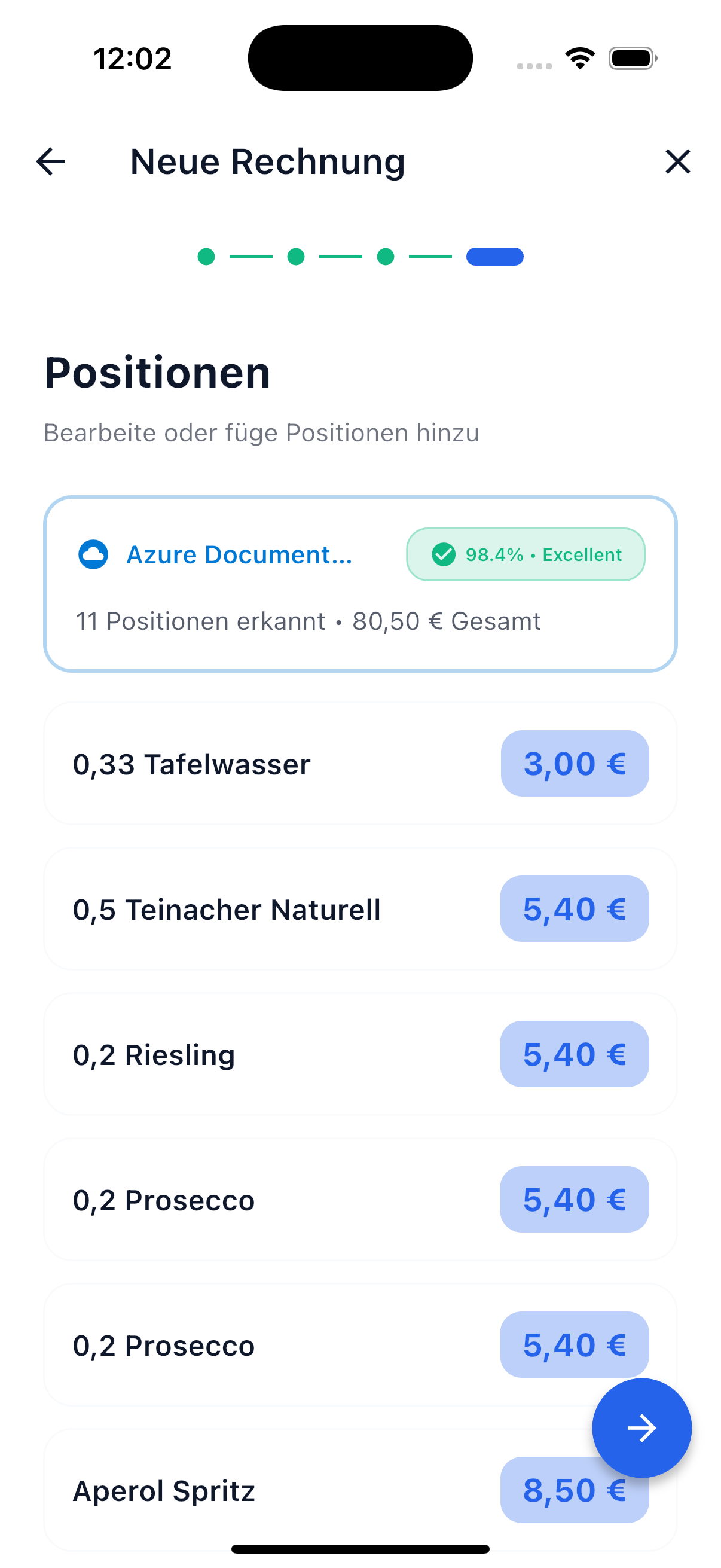
The recognized items are shown for your review. You can edit, delete, or add new items.
Confirm
Confirm the items and they're automatically inserted into your bill.
What Gets Recognized?
The receipt scanner automatically detects:
- Item names — e.g., "Margherita", "Cola 0.5L"
- Individual prices — the price of each item
- Quantities — when shown on the receipt (e.g., "2x Espresso")
- Total amount — cross-checked against the sum of items
- Currency — automatically detected (EUR, USD, CHF, etc.)
- Tips / service charges — recognized as separate items
Supported Receipt Types
SplitHappens handles many different receipt formats:
| Receipt Type | Recognition |
|---|---|
| Restaurant bills | Very good |
| Supermarket receipts | Very good |
| Hotel invoices | Good |
| Gas station receipts | Good |
| General receipts | Good |
Tips for Good Recognition
Recognition quality depends on image quality. Follow these tips for the best results:
How to Get Great Results
- Lay the receipt flat — crumpled or folded receipts are harder to read
- Good lighting — adequate light, no shadows on the receipt
- Entire receipt in frame — all items and the total must be visible
- Portrait orientation preferred — receipts are typically taller than wide
- Hold camera steady — blurry images lead to poorer results
- Contrast — dark text on light paper works best
These Can Cause Problems
- Heavily faded or smeared receipts
- Handwritten bills
- Receipts with many creases or tears
- Very small text or unusual fonts
- Receipts on dark or colored paper
After Scanning
After the AI has analyzed the receipt, you can adjust the results:
Edit Items
- Change name — Tap the item name to correct it
- Correct amount — Tap the price to adjust it
- Delete item — Remove items that don't belong to the bill (e.g., subtotals)
- Add item — Manually add items that weren't recognized
Check Total
SplitHappens compares the sum of recognized items against the recognized total. If there's a discrepancy, you'll be notified.
Tips and Service Charges
Tips or service charges are recognized as separate items. You can keep or delete them — depending on whether they should be split.
Technical Background
SplitHappens uses Azure Document Intelligence — a specialized AI model from Microsoft trained specifically for receipt and invoice recognition. It reliably recognizes items, prices, quantities, and totals in various languages and formats.
Recognition is performed server-side and GDPR-compliant on European servers. Receipt images are only processed for analysis purposes.
Scan Allowance
Each scan incurs costs, so there is a fair daily and weekly allowance. For normal use, this allowance is more than enough.
| Allowance | Limit |
|---|---|
| Per day | 10 scans |
| Per week | 40 scans |
What happens when the limit is reached?
You'll see a message that your scan allowance has been used up. The daily limit resets automatically the next day.
You can always enter your bill manually — this works without scanning and without any limit.
Next Steps
-
Manage Positions
Assign the recognized items to your friends.
-
Create a Bill
Back to the overview: all ways to create a bill.