Create an Event
A new event is set up in three steps. After that, all participants can immediately add bills and assign their items.
The Three Steps
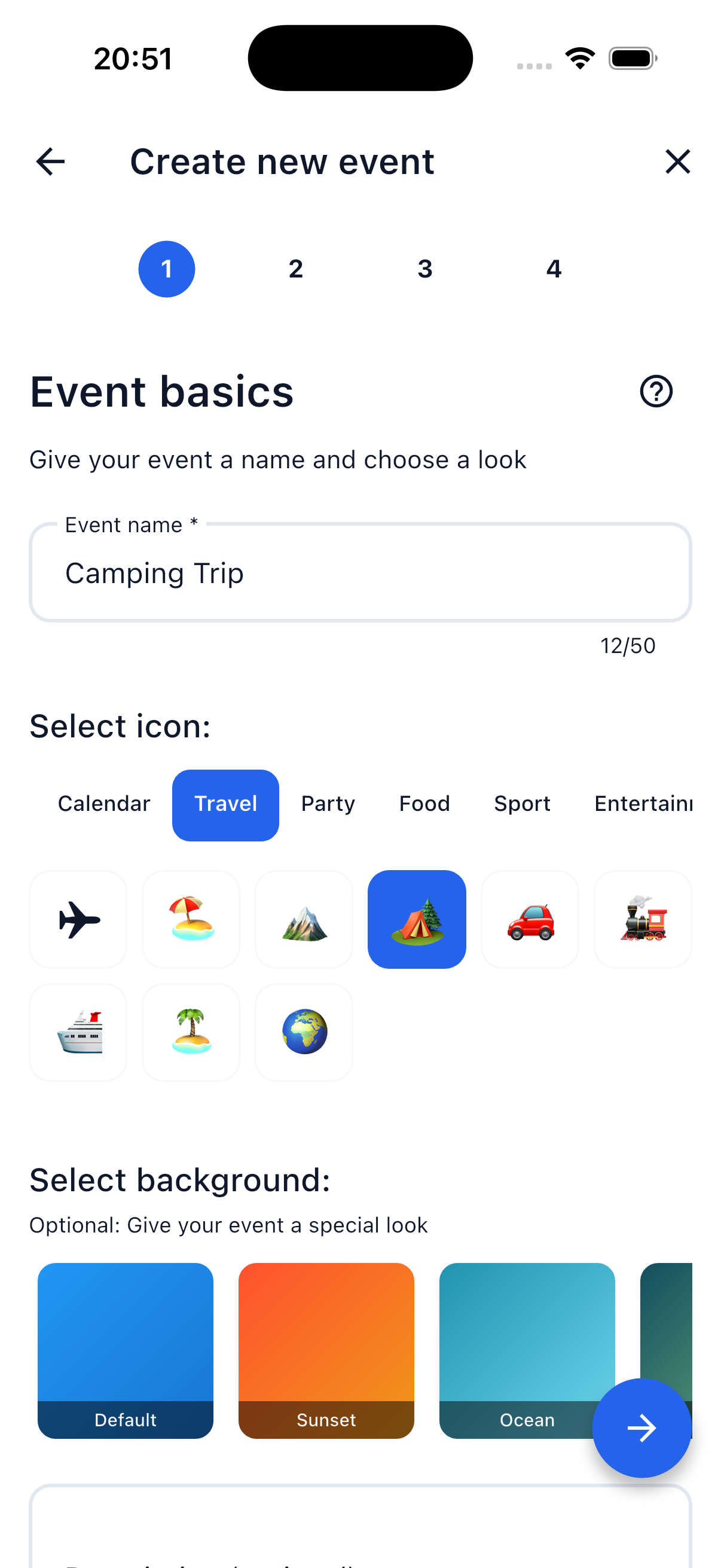
Step 1 — Event Basics
Give your event a name and choose how it should look in the list:
- Name — A descriptive title, e.g. "Weekend at the Lake", "Apartment Expenses March" or "Team Building Summer 2026"
- Icon — Pick a fitting symbol from different categories (travel, party, living, sports, ...)
- Background — Optional: Give the event a background image so it stands out in the list
- Description — Optional: A short hint or context for participants (up to 500 characters)
The name helps all participants instantly recognize the event in their list.
Step 2 — Event Details
Define period and location — both are optional:
- Date range — Pick a start date and an end date. Perfect for trips or weekends.
- Location — Where does the event take place? Free text (e.g. "Berlin", "Alpine Hut Königssee")
Save without a date
If your event has no fixed start and end date (e.g. an ongoing apartment kitty), just leave the fields empty.
Step 3 — Invite Participants
Pick friends from your friends list and optionally guests who don't have a SplitHappens account:
| Type | Description |
|---|---|
| Friends | Users from your friends list. They receive an invitation notification. |
| Guests | People without a SplitHappens account. You add them by name; they can be assigned to items. |
You as Organizer
You are automatically added as the organizer — no need to pick yourself. This step is entirely optional: you can also create an empty event and invite later.
After Creating
Once your event is created:
- All invited friends receive a notification
- The event appears in the event list of all participants
- Everyone can immediately add bills
- The balance is updated in real time
Invite More Participants
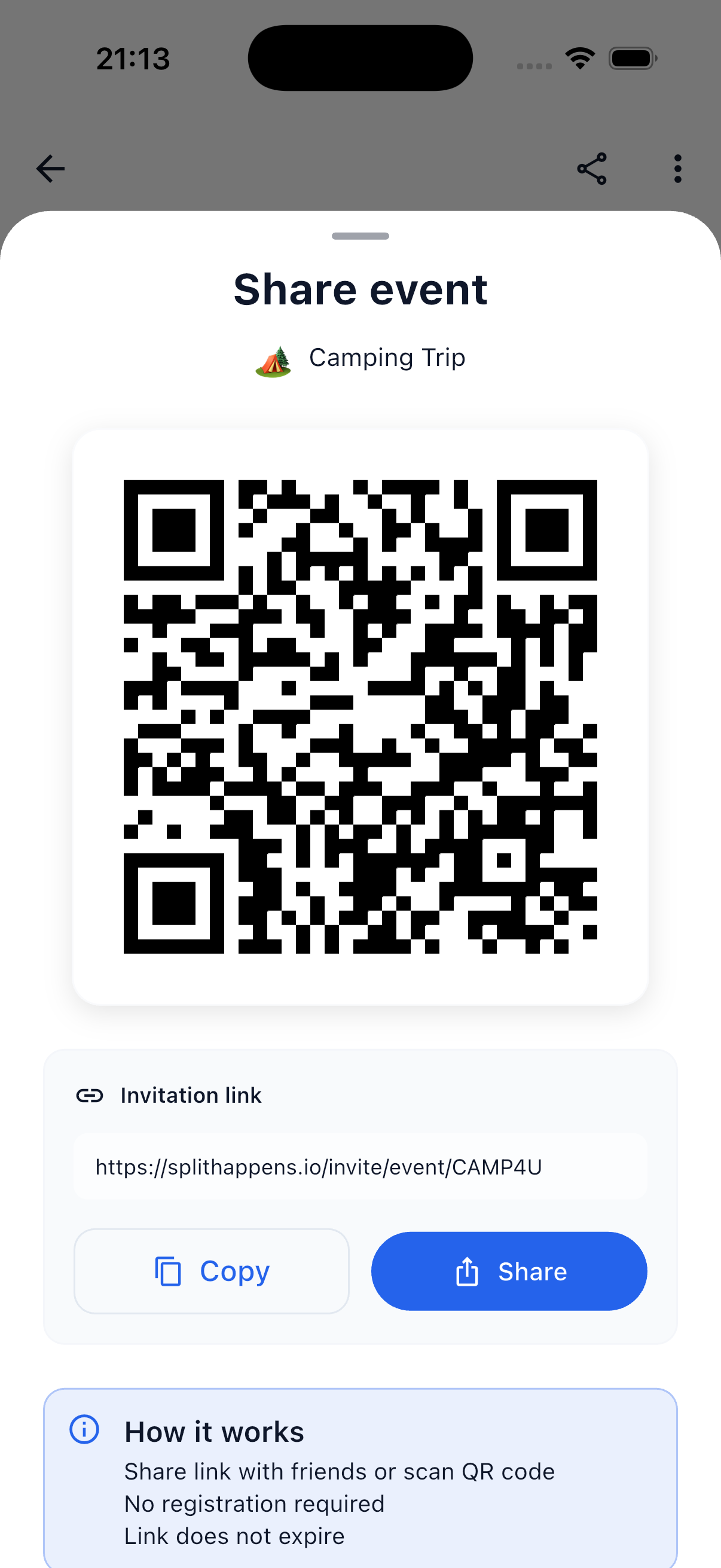
Via the share icon in the event detail you can invite additional people at any time — via QR code or invitation link. The link can be copied directly or shared via messenger.
Adjust Roles Later
After creating, you can promote individual participants to organizer in the event detail view. Organizers can edit event bills and manage additional participants.
Related Topics
- Events Overview — Manage your events
- Event Settlement — Understand settlement within events
- Create Bills — Create a new bill in the event