Events Overview
Events bundle all expenses of a shared activity in one place. At the end, SplitHappens automatically calculates who owes whom.
Perfect For
-
Group Trips
Vacation rental, car rental, restaurant visits — all in one event.
-
Shared Apartment Expenses
Rent, groceries, internet — settle monthly or on an ongoing basis.
-
Birthday Parties & Events
Food, drinks, decorations — everyone sees what they owe.
-
Regular Meetups
Sports group, pub night, game night — split expenses on an ongoing basis.
Event List
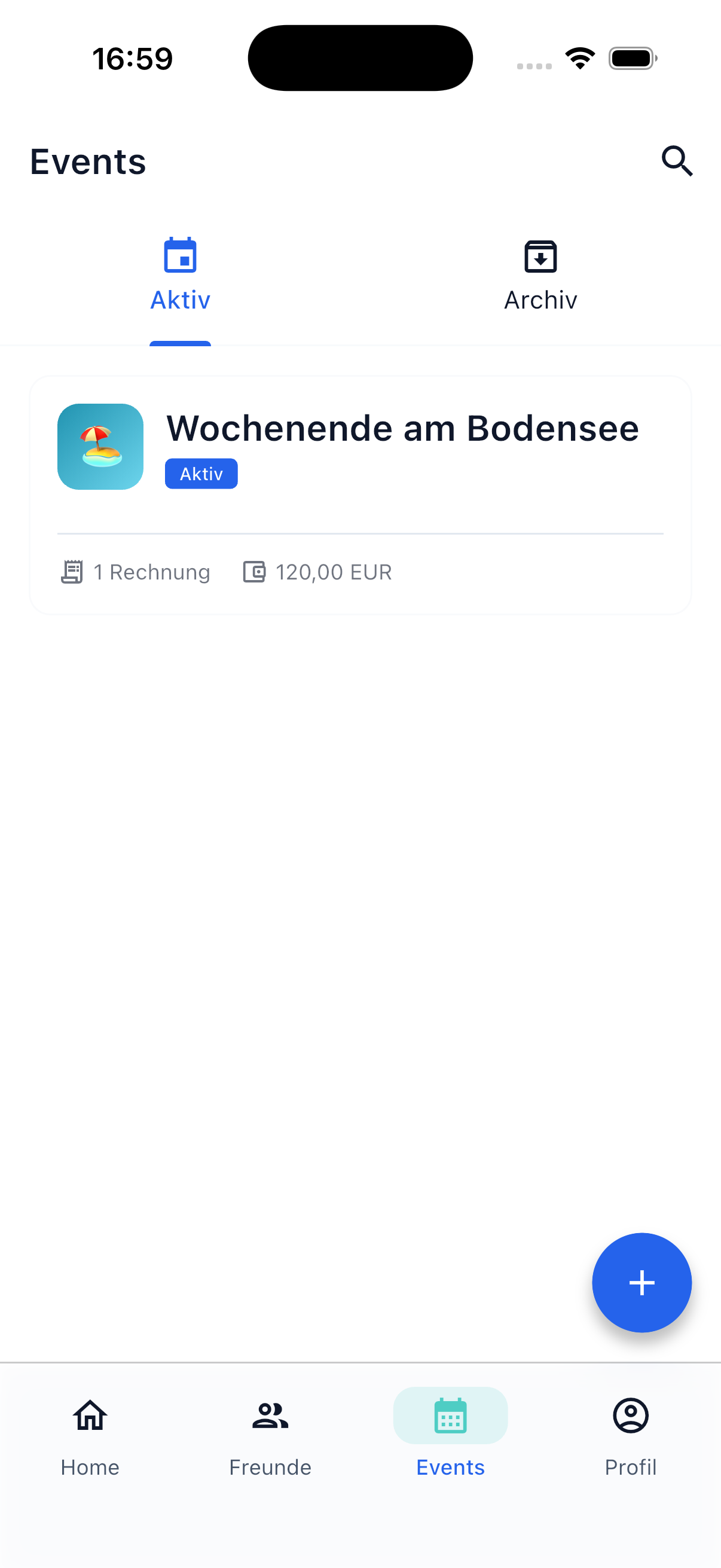
In the Events tab you can see all your events at a glance:
- Icon and color — Each event has a unique appearance
- Participant count — Shows how many people are involved
- Open amount — Your current balance within the event
- Status — Active or archived
Automatic Participant Sync
An important feature of events: All event participants are automatically included in every bill within the event. When you add a new participant to the event, they're automatically added to all existing bills as well. Conversely, when someone leaves the event, they're removed from the bills.
This means: When creating a new bill within an event, you don't need to manually select participants — they're already all included.
Active and Archived Events
You can switch between two views:
- Active Events — Ongoing events with open bills
- Archived Events — Completed events that you can view or reactivate at any time
Archive an Event
When an event is finished, you can archive it:
- Open the event and tap the menu (top right)
- Select Archive
- If there are still open debts, the app shows you an overview of who owes whom
- Confirm the archiving
What happens:
- All open bills in the event are marked as paid
- All positions are considered completed
- No one owes anything within this event anymore
- The event moves to the Archive tab
Tip
It's best to settle all debts before archiving the event. This way actual payments match the app. If you archive with open amounts anyway, they'll be automatically marked as settled.
Restore an Event
You can reactivate an archived event at any time:
- Switch to the Archive in the Events tab
- Open the desired event
- Tap Restore
The event reappears among your active events.
Clean Slate
After restoring, the event starts with a balance of zero. The old bills are still visible but no longer count toward the current balance — they were marked as paid when archived. When you add new bills, calculations start from this point forward. Previously recorded payments remain visible in the activity tab and are not lost.
Next Steps
-
Create Event
Create a new event and invite participants.
-
Event Settlement
Understand how settlement works within an event.