App Overview
SplitHappens is divided into four main sections, accessible via the navigation bar at the bottom of the screen.
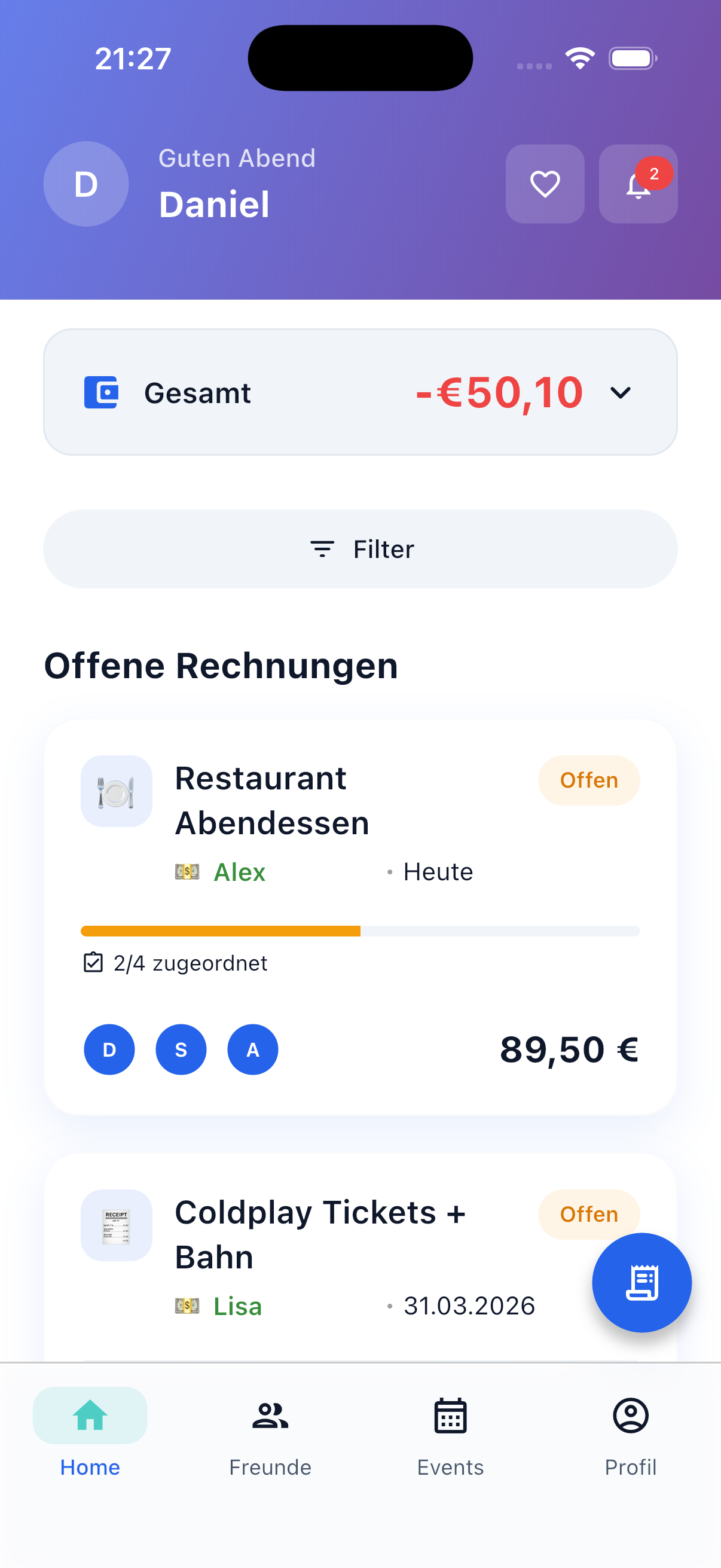
The Four Main Tabs
Home — Your Dashboard
The Home dashboard is your central hub. At a glance you can see:
- Total balance — How much you're owed or owe in total
- All bills — A chronological list of all your bills (both personal and event bills)
- Filters — Filter by status (Open, Paid, Settled) and type (Friends, Events, specific event) via the filter button
From here you can:
- Create new bills (via the blue New Bill button at the bottom right)
- Tap existing bills to see details
- Filter bills by status and type
Spotting Event Bills
Bills that belong to an event are marked with a small event tag on the Home dashboard. This way you instantly know which event a bill belongs to.
Friends — Your Contacts
In the Friends tab you manage your contacts and see the balances between you and your friends:
- Friend list with balances — For each friend you can immediately see if you owe them or they owe you
- Friend requests — Manage incoming and outgoing requests
- Invite friends — Via QR code or invitation link
From here you can:
- Tap a friend to see your shared bills and details
- Settle debts directly (Settlement)
- Add new friends
Events — Shared Activities
Events are ideal for anything where multiple bills belong together — vacations, shared apartment expenses, birthday parties, or group projects:
- Event overview — All your active and archived events
- Event details — All bills and participants of an event
- Event settlement — Smart settlement at the end of the event
From here you can:
- Create new events and invite participants
- Create bills directly within the event context
- View the total settlement of an event
Separate Settlement
Each event has its own settlement system. Event debts are calculated separately from your personal debts. This keeps everything organized.
Profile — Your Settings
In the Profile tab you'll find everything about your account and settings:
- Profile data — Edit name, avatar, and email address
- Default currency — Set your preferred currency
- Language & Timezone — Adjust app language and timezone
- Payment methods — Add PayPal, IBAN, and other payment information
- Notifications — Configure push notifications
- Appearance — Switch between light, dark, or system theme
- Privacy — Manage privacy settings
- Data export — Download a copy of your data
- Account — Sign out or delete account
Navigation & Usage
The New Bill Button
The blue New Bill button at the bottom right of the Home dashboard is your starting point for creating new bills. Tapping it opens the bill wizard, which guides you step by step through the creation process.
Back Navigation
Within the app, navigate with the back arrow at the top left or your smartphone's back gesture (swipe from the left edge on iOS, back button on Android).
Pull-to-Refresh
On most screens you can pull the list down to refresh the data. Generally, however, the app syncs automatically in real time.
Real-Time Updates
SplitHappens updates in real time. When a friend creates a bill or assigns a position, you'll see the change immediately — without manual refreshing.
Next Steps
Ready to get started? Create your first bill: