Create Your First Bill
In this guide, you'll create your first shared bill step by step. The bill wizard guides you through the entire process.
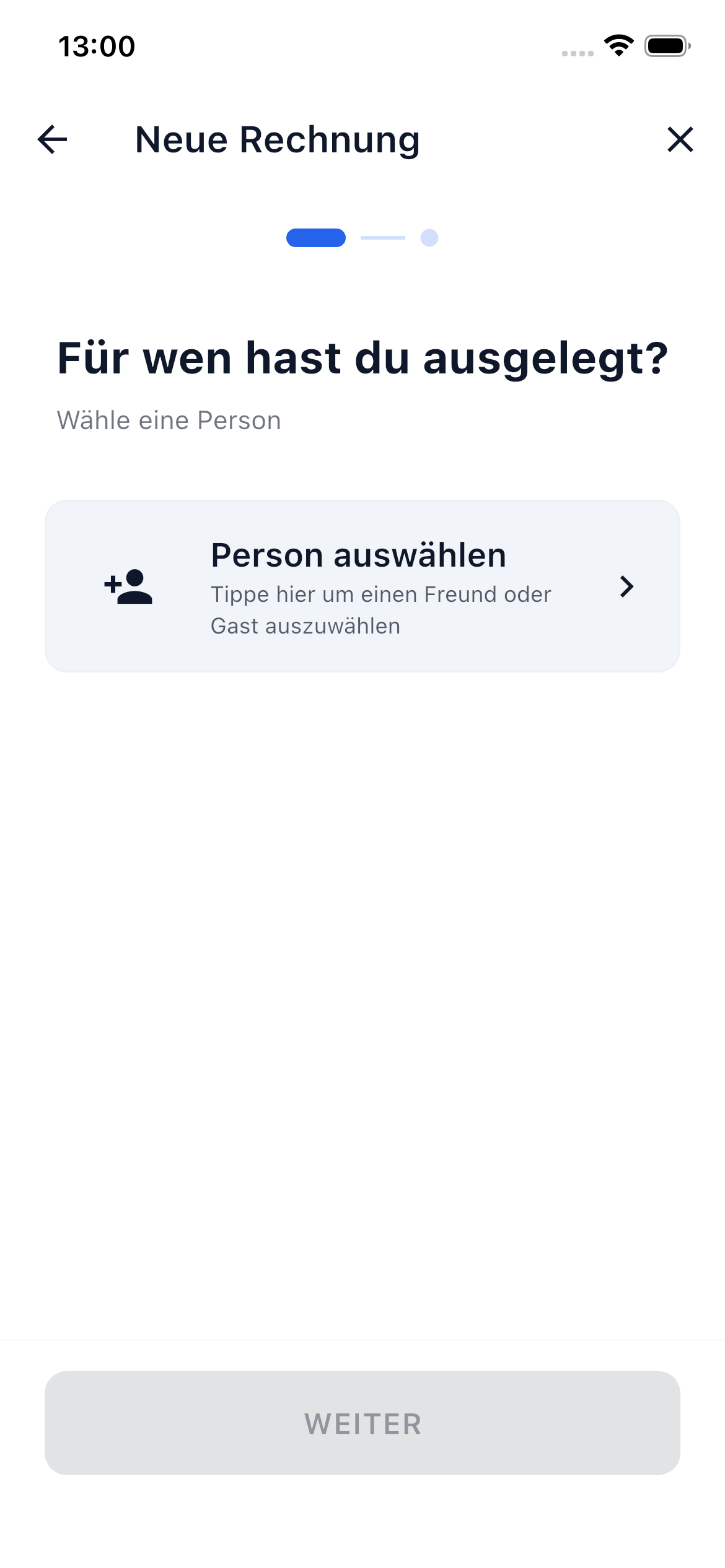
The Bill Wizard
Tap the blue New Bill button at the bottom right of your dashboard. The bill wizard opens and shows you three options:
| Option | Description | Ideal For |
|---|---|---|
| Scan Receipt | Photograph a receipt, AI recognizes items automatically | Restaurant bills, shopping with many items |
| Split Bill | Split a total amount (evenly or individually) or enter individual items | Taxi, rent, restaurant, groceries |
| Single Payment | Record an expense to one person | "I fronted you 20 euros for concert tickets" |
At the top, a progress bar with dots shows you how far along you are. You can always go back to the previous step with the back arrow.
Quick Start: Split a Bill
For your first bill, we recommend the "Split Bill" option. Here's how:
1. Choose Mode
Tap "Split Bill". In the next step, choose how costs should be divided:
- Split total amount — Enter the total and split it among all participants — evenly or with custom rules. Ideal for shared expenses like taxi, rent, or vacation rental.
- Individual items — Create individual items that can then be individually assigned or split as needed. Ideal when everyone ordered something different (e.g., at a restaurant).
2. Enter Basic Info
- Title — Give the bill a descriptive name (e.g., "Pizzeria Da Luigi 03/14")
- Date — Defaults to today, but you can change it
- Currency — Your default currency is pre-selected
3. Participants & Payer
- Select participants from your friends list or add guests (people without their own account)
- Set the payer — who paid the bill? By default, it's you
Guests
Guests are people without a SplitHappens account. You can add them by name. Their shares are attributed to you as the creator until they create their own account.
4. Amount / Items
Enter the total amount and choose how to split it:
- Evenly — Everyone pays the same share (e.g., 30 EUR ÷ 3 = 10 EUR each)
- Unevenly — You determine how much each person pays. Three methods are available:
- Amounts — Enter fixed amounts per person
- Shares — Split proportionally (e.g., Daniel 2 shares, Emma 1 share → Daniel pays twice as much)
- Percent — Percentage split via sliders (e.g., 45%, 27%, 27%)
Create individual items (e.g., "Margherita 12.50 EUR", "Salad 9.00 EUR"). These can later be individually assigned to participants.
5. Summary & Create
Review the summary and tap the green checkmark button to create the bill.
What Happens After Creating?
- All participants see the bill on their dashboard and are notified
- For bills with individual items, participants can self-assign their items
- Balances between you and your friends are automatically updated
- Via the Friends tab you can settle debts at any time
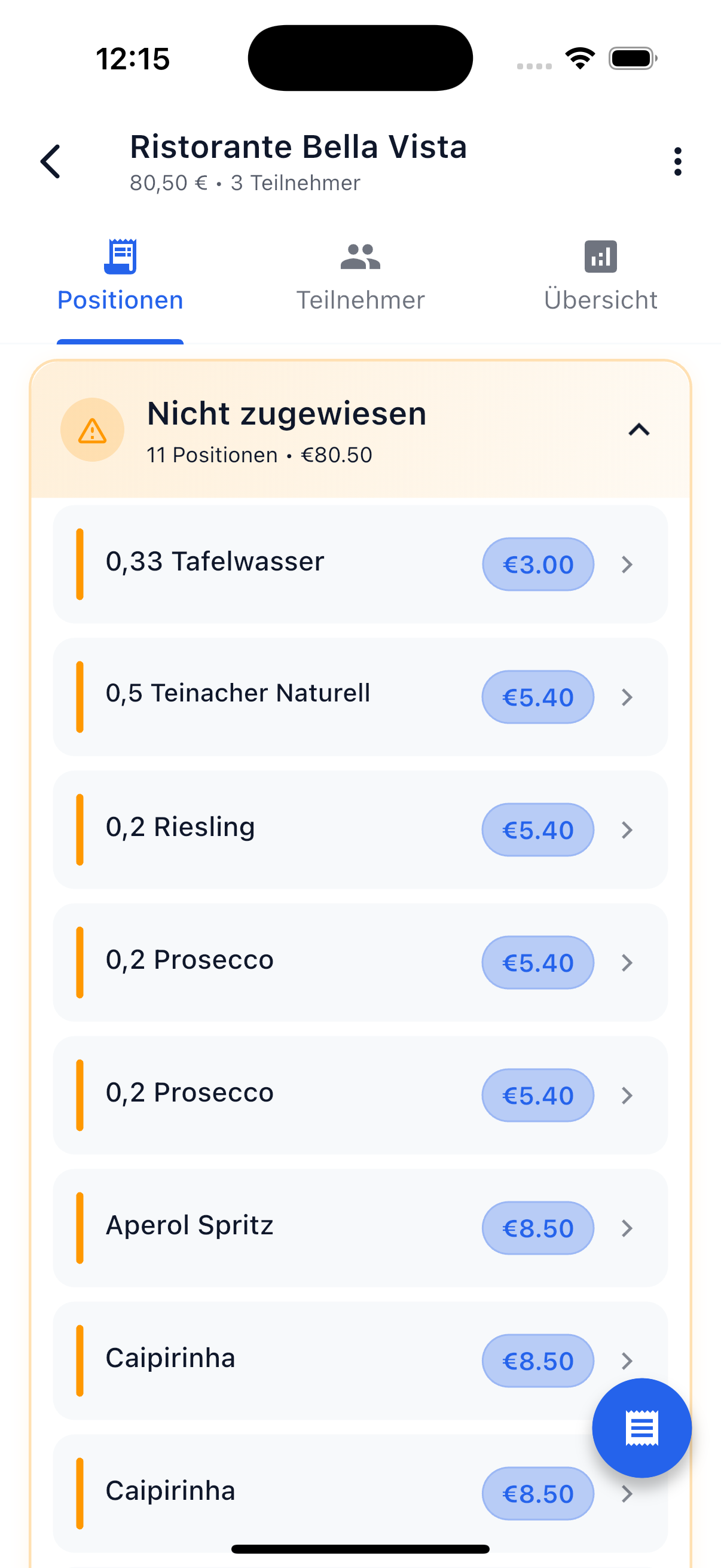
Assigning Positions
You assign the items you ordered to yourself. If you had the pasta at the restaurant, assign the pasta item to yourself. This way SplitHappens knows you owe that amount. Items can also be split among multiple people — the price is then divided evenly.
Example: Restaurant Bill
Imagine you went out to eat with Sarah and Alex. The bill comes to 89.50 euros:
- Tap New Bill → "Split Bill" → "Individual Items"
- Basic info — Title: "Restaurant Bella Italia", Currency: EUR
- Participants — You, Sarah, and Alex. You are the payer
- Create items — Pasta (14.50 EUR), Salad (9.00 EUR), Steak (22.00 EUR), Wine (24.00 EUR) ...
- Create — All three see the bill instantly
- Assign — You assign the pasta to yourself, Sarah gets the salad, Alex gets the steak. You split the wine three ways = 8.00 EUR each
Tips for Getting Started
Start Simple
To try things out, first create a simple bill with "Split Total Amount." This lets you learn the process before creating more complex bills with individual items or receipt scanning.
Add Friends First
Before creating your first bill, it's best to add one or two friends first. Then you can select them directly as participants.
Receipt Scanning Saves Time
For restaurant bills with many items, receipt scanning is worth it. Photograph the receipt and the AI recognizes all items automatically.
Next Steps
-
Create a Bill — Full Guide
All details about the bill wizard: split total, individual items, receipt scanning, and single payment.
-
Receipt Scanning
Learn how to get the most out of AI receipt scanning.
-
Manage Friends
Add friends and manage debts.