Registration & Login
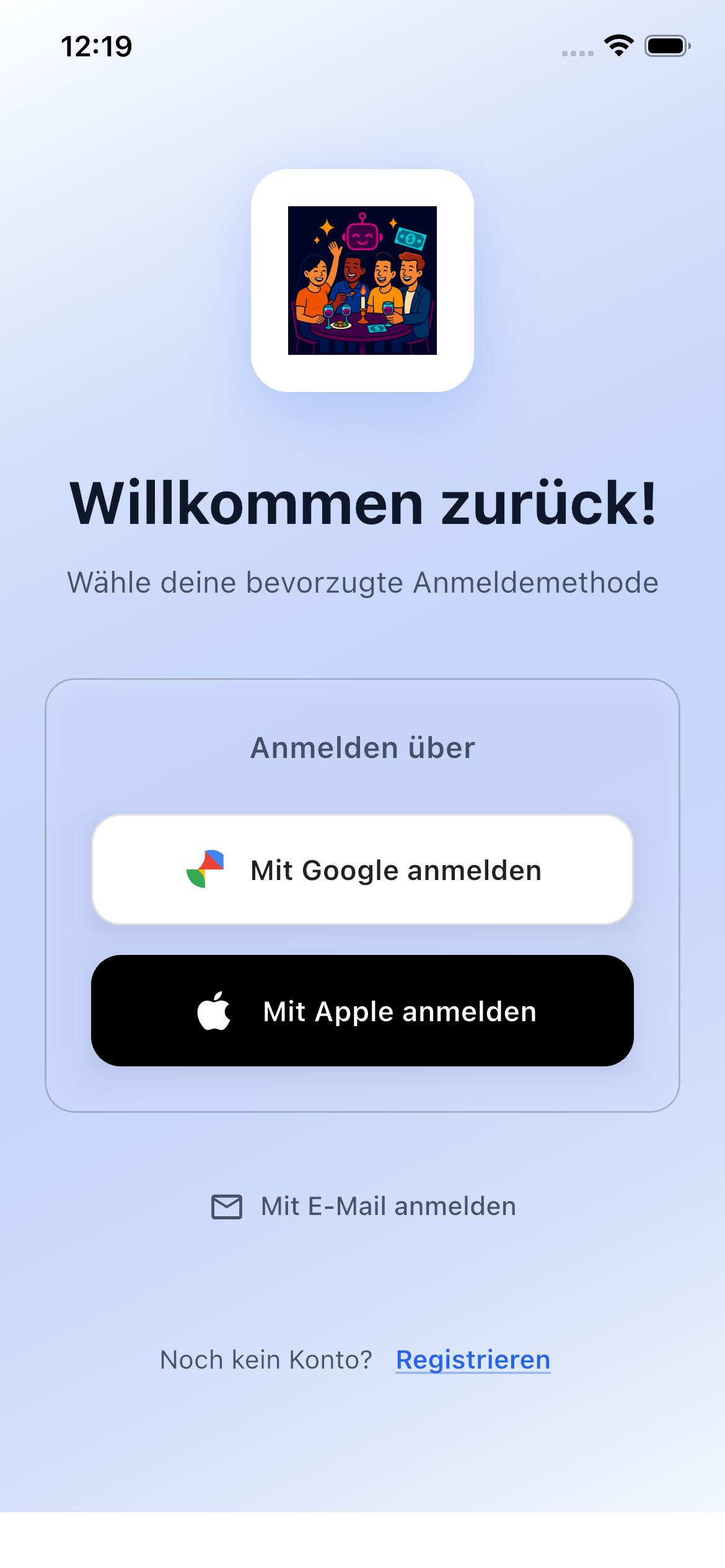
You can sign in to SplitHappens in three ways: with email and password, with your Google account, or with your Apple ID.
Create an Account
Option 1: Email & Password
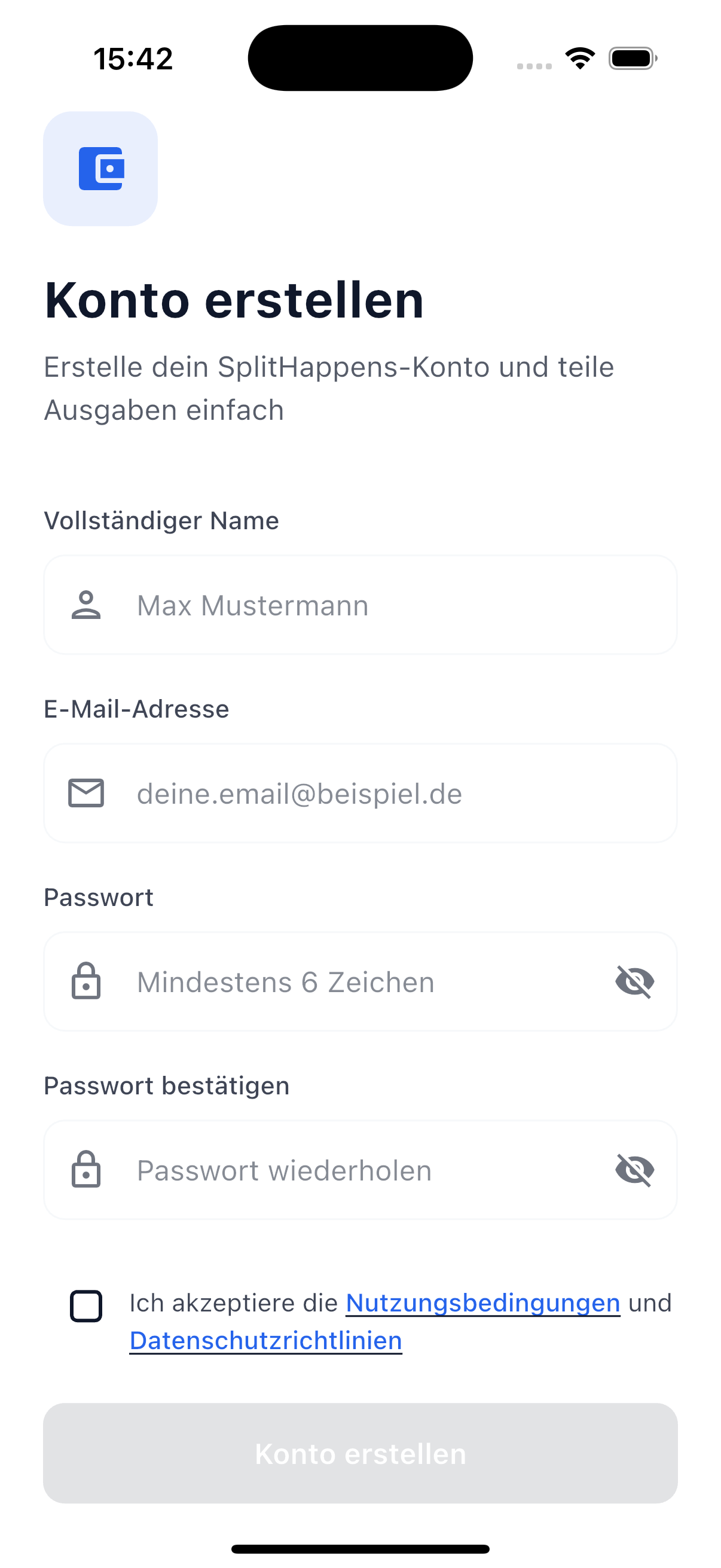
- Open SplitHappens and tap Register
- Enter your name, email address, and a password (at least 6 characters)
- Confirm the password by entering it again
- Accept the Terms of Service and Privacy Policy via the checkbox
- Tap Create Account
- Check your email inbox and confirm your email address via the link in the confirmation email
Password Tips
Use a password with at least 8 characters that combines letters, numbers, and special characters. A password manager can help with this.
Social Login & Terms
Even when registering via Google or Apple, you must accept the Terms of Service and Privacy Policy. The social login buttons only become active once the checkbox is checked.
Option 2: Sign in with Google
- Tap Sign in with Google
- Select your Google account or sign in
- Confirm the permissions
- Done — you'll be automatically logged in
What Is Shared?
SplitHappens only receives your name and email address from Google. We have no access to your Google password or other data.
Option 3: Sign in with Apple
- Tap Sign in with Apple
- Confirm with Face ID, Touch ID, or your device passcode
- Choose whether to share your email address or use a private relay address
- Done — you'll be automatically logged in
Private Email Address
Apple offers the option to use a random relay address. This keeps your real email address private. Messages from SplitHappens will still be forwarded to you.
Onboarding — Set Up Your Profile
After registration, a setup wizard guides you through all important settings. You can skip individual steps and complete them later.
Step 1: Welcome
A brief greeting and introduction to SplitHappens.
Step 2: Set Up Profile
- Choose your display name — this is shown to your friends in the app
- Choose an avatar: You can either select an avatar color (your avatar is generated from initials + color) or upload a custom photo from your gallery
Profile Photo
For best results, use a square image. The app automatically scales it to the optimal size.
Step 3: Set Default Currency
Choose the currency you normally pay with — for example EUR, CHF, or USD. This currency will be used as the default for new bills. You can always choose a different currency per bill.
Step 4: Appearance
Choose between light, dark design, or system setting. You can change the appearance at any time in your profile settings.
Step 5: How It Works
A brief introduction explaining the key features of SplitHappens.
Step 6: Payment Methods
Optionally add your PayPal address or bank details (IBAN) so friends know where to transfer money to you. You can skip this step and add the details later.
Step 7: Notifications
Enable push notifications to be informed about new bills, payments, and friend requests.
Step 8: Add Friends
Add your first friends right away — via QR code or invitation link.
Step 9: Done!
You're all set. From here you'll go directly to your dashboard.
Everything Can Be Changed Later
All settings from the onboarding can be adjusted at any time under Profile > Settings. You don't need to set up everything right away.
Sign In (Existing Account)
If you already have an account:
- Open SplitHappens
- Tap Sign In
- Enter your email address and password — or use Google / Apple
- You'll be taken directly to your dashboard
Forgot Password?
If you've forgotten your password:
- Tap Forgot Password? on the login screen
- Enter your registered email address
- Tap Send Link
- Check your email inbox (including spam!) and click the reset link
- Choose a new password
Link Not Received?
Check the spam or junk folder of your email inbox. The link is valid for 24 hours. If you don't receive an email, make sure you entered the correct email address.
Sign Out
To sign out of SplitHappens:
- Go to the Profile tab (bottom right)
- Scroll down and tap Sign Out
- Confirm the sign-out
Your data will be preserved. When you sign in again, you'll find everything as you left it.
Delete Account
If you want to permanently delete your account:
- Go to the Profile tab
- Open Settings (gear icon)
- Scroll down and tap Delete Account
- Read the overview of which data will be deleted (profile, bills, events, friendships, files)
- Check the confirmation checkbox ("I understand that this action cannot be undone")
- Tap Permanently Delete Account and confirm in the dialog
After deletion, you'll be automatically signed out and receive a confirmation email.
Export Data First
Before deleting your account, you can download a copy of your data under Profile > Export Data. This gives you a backup of your bills and expenses.
Warning: Irreversible
Deleting your account will permanently remove all your data — including profile, bills, events, friendships, and uploaded files. You should settle any open debts beforehand. This action cannot be undone.