Home Dashboard
Your dashboard is the home screen of SplitHappens. Here you always have a full overview of all your bills and your current balance.
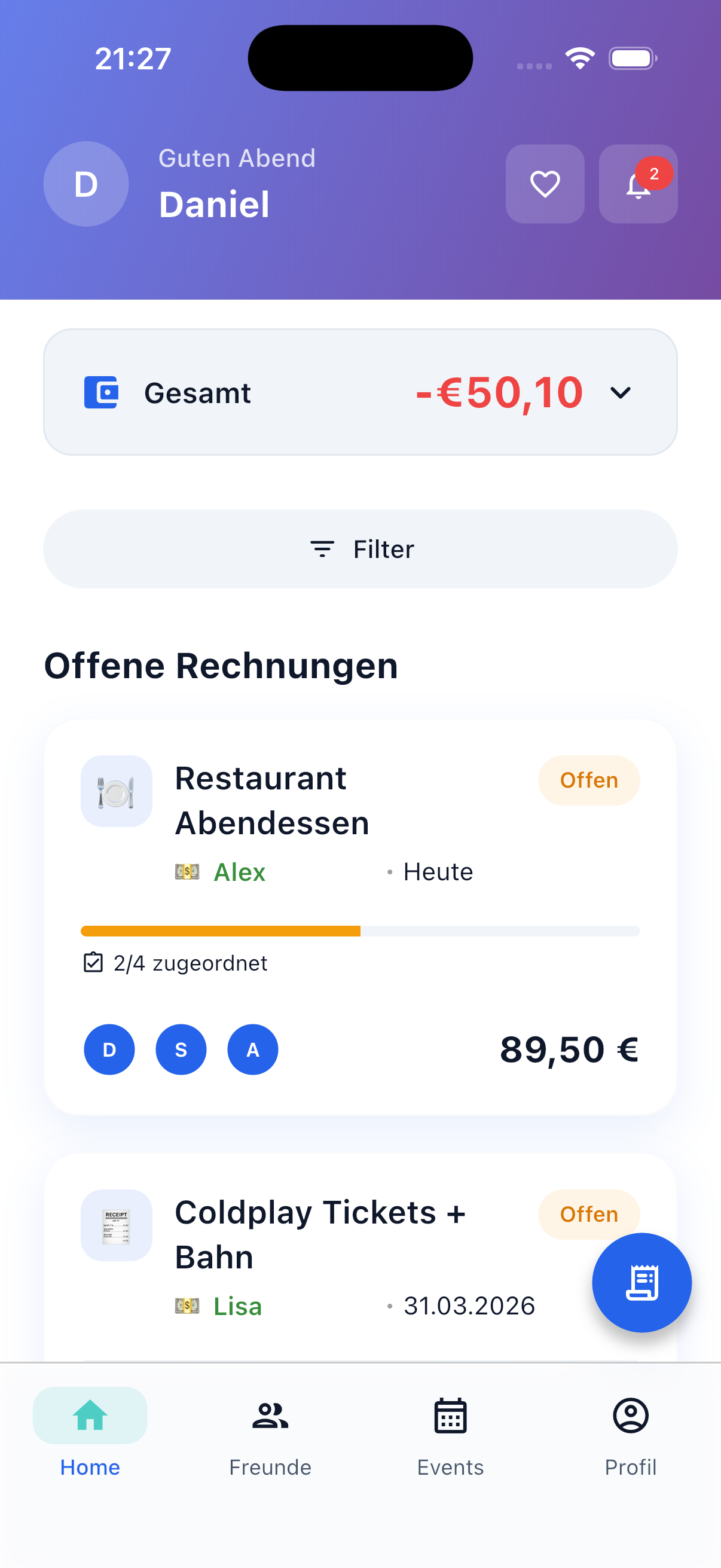
Greeting & Header
At the top you're welcomed with a time-based greeting ("Good Morning", "Good Afternoon", or "Good Evening") along with your name and avatar.
In the top right you'll find two buttons:
- Donate Button — Support the development of SplitHappens
- Notifications — Shows unread notifications as a red badge
Financial Overview
Below the greeting you'll see your Balance Card with the total balance — the sum of all open amounts.
| Display | Meaning |
|---|---|
| Positive balance (green) | You are owed money — others have open amounts with you |
| Negative balance (red) | You owe money — you have open amounts with others |
| 0.00 EUR | All settled — no open amounts! |
Expandable Details
Tap the Balance Card to see a breakdown: separated into friends balance and events balance. Tap on either section to jump directly to the corresponding tab.
Currency Conversion
The balance is displayed in your default currency. Bills in other currencies are automatically converted.
Bill List
Below the balance you'll find your bill list. All bills you're involved in are displayed here — whether you created them or were invited.
Bills are sorted by date, newest first. Each bill card shows you at a glance:
- Emoji icon — Automatically detected from the title (e.g., a plate icon for restaurant, a cart for shopping)
- Title of the bill (e.g., "Pizzeria Da Luigi")
- Payer — Who paid the bill (in green)
- Date — When the bill was created
- Status chip — Colored badge with current status:
- Open (amber) — You haven't paid your share yet
- Paid (cyan) — You've paid your share
- Done (green) — Bill completely settled
- Participant avatars — Up to 3 avatars, with a "+X" badge for more participants
- Total amount — Prominently at the bottom right
- Progress bar — For open bills: shows how many items are already assigned (e.g., "2/4 assigned")
Event Tags
If a bill belongs to an event, an event badge with icon and name is displayed. This lets you instantly see which bills belong to e.g., the summer vacation or the apartment party. Tap the badge to jump directly to the event.
Filtering
Via the filter button above the bill list you can narrow down the view. A tap opens a bottom sheet with the following options:
Bill Type
Choose which type of bills to display:
- All — Friends and event bills
- Friends — Only personal bills (without event association)
- Events — Only event bills (when selected, you can additionally filter by a specific event)
Status
- All — All bills regardless of status
- Open — Bills with items not yet paid
- Paid — Bills where you've paid your share
- Settled — Fully completed bills
Filter Badge
When filters are active, the button shows a badge with the number of active filters. Via the X next to the button you can quickly reset all filters.
Refreshing Data
Simply pull the bill list down (pull-to-refresh) to load the latest data from the server. Generally, however, the app syncs automatically in real time.
Next Steps
-
Create a Bill
Create your first bill and share expenses with friends.
-
Invite Friends
Add friends to split bills more easily.