Guests Without an Account
Sometimes you split bills with people who don't have a SplitHappens account — for example when dining with acquaintances or at a party. That's what the guest feature is for.
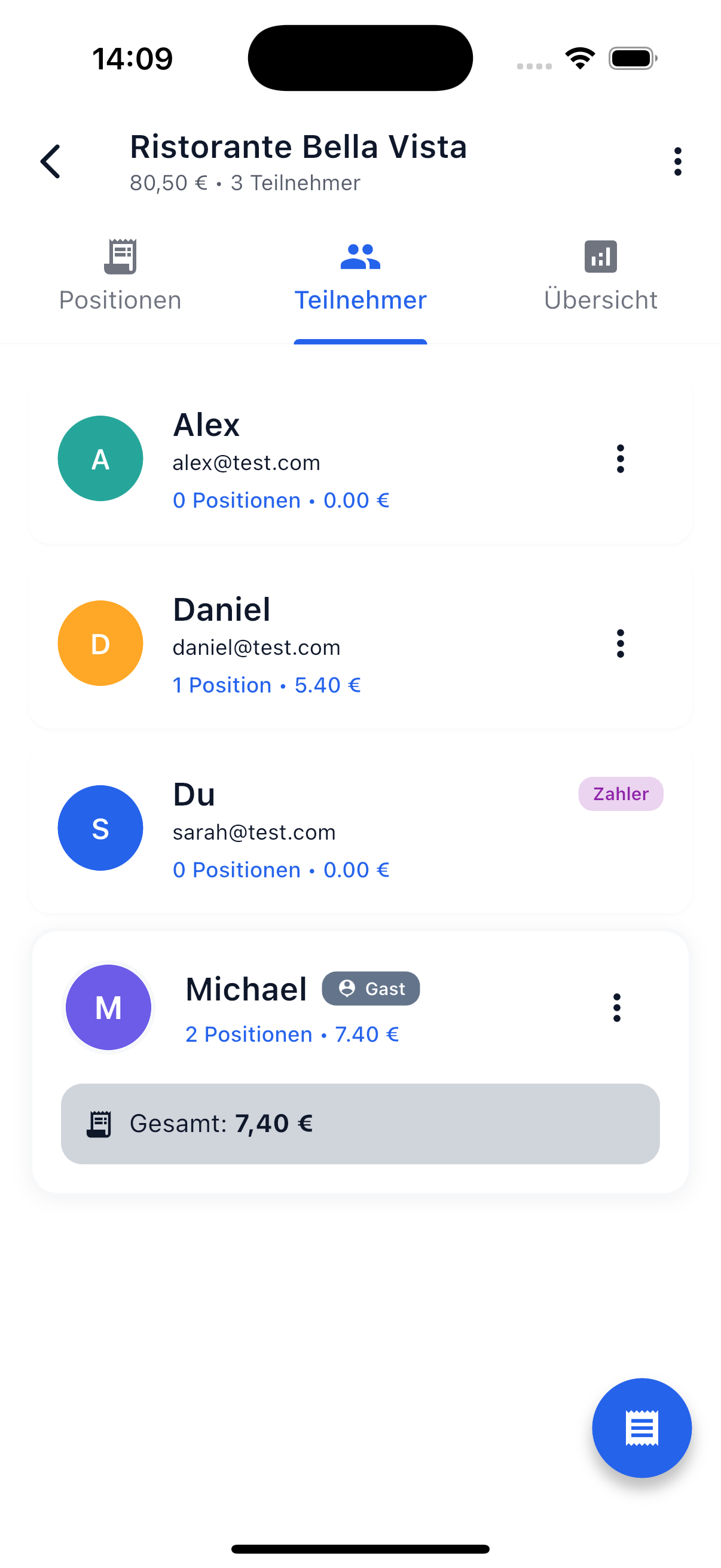
Create a Guest
Guests are created via the participant selection screen. You can access it when creating or editing a bill or event.
Option 1: Via Search
- Open the participant selection screen (when creating/editing a bill or event)
- Tap the search field "Search friends or guests..."
- Enter the person's name
- Tap "Add as Guest"
- The guest appears as a participant with a "Guest" badge
Option 2: Via Guest Management
- Open the participant selection screen
- Scroll to the Guests section and tap "Manage Guests"
- Create a new guest with a name
- The guest is then available for selection
Guests automatically get their own avatar color so they're easily recognizable in the bill.
Manage Guests
Guests can be managed in two places:
- In the participant selection screen — Via the "Manage Guests" link in the Guests section
- In the Friends tab — Your guests are also displayed there and can be edited or deleted
Properties
- Reusable: Once created, guests can be reused on additional bills and events. You don't need to create them each time.
- Custom avatar color: Each guest has an individual color for their avatar to visually distinguish them from other participants.
- Creator manages: As the guest's creator, you have management rights and can change the name or delete the guest.
Remove a Guest
Positions Are Preserved
When you remove a guest from a bill, all their positions are released (back to "Open") — not deleted. The released positions can then be reassigned. A confirmation dialog appears before removal.
Assign Positions
Guests work exactly like regular users for position assignment:
- You can assign positions to guests
- Guests can share positions with other participants (split)
- The owed amount is calculated correctly
Note
Since guests don't have their own account, they cannot assign positions themselves. You handle the assignment for them.
Guest Takeover — Account Conversion
The guest takeover feature converts a guest into a full SplitHappens user. Here's how:
- Share link: Share the invitation link with the guest
- Create account: The guest creates their own SplitHappens account via the link
- Automatic transfer: All previous positions and balances are automatically transferred to the new account
Complete Transfer
During takeover, all of the guest's bills and events are transferred at once — positions, splits, and debts automatically move to the new account. The previous invitation link becomes invalid afterward.
After the takeover:
- The guest is a regular user with all features
- All historical bill data is preserved
- The user can now self-assign positions and create bills
When to Use Guests?
Tip
Use guests for one-time situations — for example when someone spontaneously joins dinner. For regular shared expenses, it's worth having the person create their own account. The guest takeover makes the transition seamless.
| Situation | Recommendation |
|---|---|
| One-time dinner with an acquaintance | Create a guest |
| Regular apartment expenses | Own account |
| Friend without their phone | Create guest, takeover later |
| Vacation group with casual guests | Create a guest |