Profile & Settings
In the Profile tab you'll find all settings related to your account, appearance, and payment methods.
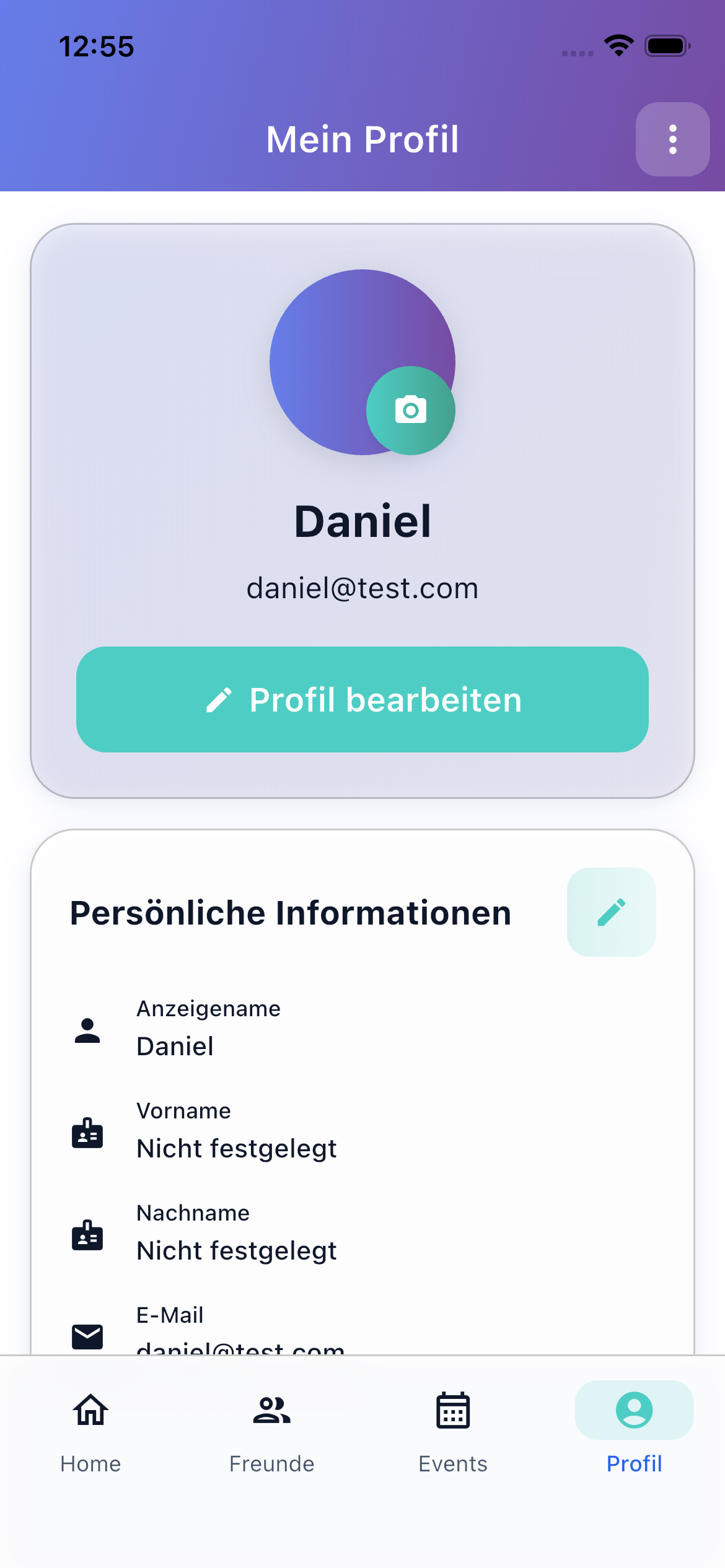
Personal Information
Your profile is your business card in SplitHappens. Tap the edit button (pencil icon) to adjust the following:
- Display name — The name other users see
- First name and Last name — Optional, for your personal overview
- Email — Your registered email address
- Avatar — Tap your profile picture to choose a color or upload a custom photo
Settings
Default Currency
Set which currency new bills are created in by default. SplitHappens supports over 150 currencies (EUR, USD, GBP, CHF, and many more). The default currency can be changed at any time — existing bills keep their original currency.
Tip
If you frequently pay in different currencies, check out the Multi-Currency page.
Language
SplitHappens is currently available in the following languages:
- German
- English
- Spanish
- Italian
The language setting affects the entire app interface including date and number formats.
Payment Methods
Manage your stored payment methods (PayPal, bank details). These are shown to your friends during settlement so they know where to transfer money to you.
Appearance
Choose the app's appearance via the dropdown menu:
- System — Follows your operating system setting
- Light — Always light background
- Dark — Always dark background — easier on the eyes in low light
Notifications
Configure your push notifications and in-app notifications. You'll be informed about new bills, assigned positions, settlements, and friend requests.
Support SplitHappens
Via "Buy a Coffee" you can support the development of SplitHappens. The link leads to Ko-fi, a platform for voluntary donations.
Account Actions
Export Data
You can export your bills as a CSV file. This gives you a backup of your expense data that you can open in Excel or Google Sheets, for example.
Sign Out
Tap Sign Out to log out of the app. Your data is preserved and you can sign in again at any time.
Delete Account
Warning: Irreversible
Deleting your account cannot be undone. All your data will be permanently removed.
When you delete your account:
- All personal data is removed
- You are automatically signed out
- You receive a confirmation email
How to delete your account:
- Tap Delete Account (red)
- Read the overview of which data will be deleted
- Check the confirmation checkbox
- Confirm in the dialog
Export First
Use Export Data before deleting your account to keep a copy of your bill data.